.png)
Muti-factor Authentication
HMIS Multi-factor Authentication (MFA):
Bitfocus Clarity Human Services, our HMIS vendor and software is moving its authentication foundation to a SOC 2 – compliant platform, Auth0. Auth0 will provide a stronger and long-term security foundation for our Clarity instances.
The change will mean that you will have a new login screen, sign in, and be required to use Multi-factor Authentication (MFA). To ensure that this is a smooth transition, please add the Bitfocus recovery email to your allowlist(s). This may require asking your IT team to allowlist the email address noreply@bitfocus.com.
The following information will prepare you to set up your MFA that will be active starting July 28, 2026.
Preparing for Universal MFA:
All HMIS End Users and System Administrators will be required to enroll in MFA; even though you have already set up and utilize Two Factor Authentication (2FA). The 2FA will be replaced by the MFA process.
Supported Authentication Methods:
- One-time password via authenticator app
- Examples include Google Authenticator or Microsoft Authenticator for iOS and Android
- Desktop-based authenticator
- Bitfocus suggests an authenticator like Proton
- Push notification via the Auth0 Guardian app
- Phone (SMS or voice)
- Email*
- *Email is only available as a secondary factor. Users must enroll in at least one other authentication method first.
Please note:
- You can manage your authentication methods directly from your Clarity account once set up.
- ICA System Admins cannot enroll or update your enrolled factors on your behalf.
- ICA System Admins can only reconfigure your MFA, forcing you to re-enroll the next time you log in.
MFA Enrollment Steps:
- Navigate to your Clarity HMIS instance
- For New Hampshire and Vermont this is https://newengland.clarityhs.com/login
- Enter your email address that is associated with your Clarity account
- Click ‘Sign In’
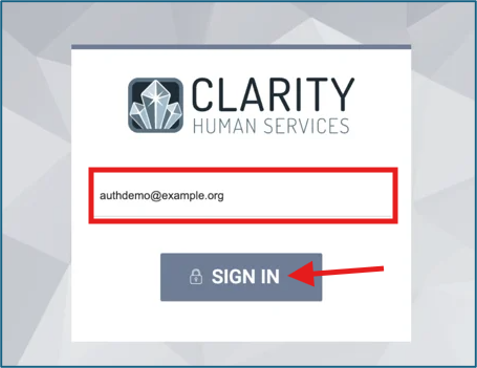
- You will be temporarily redirected to the Auth0 login page
- Enter your email and Clarity account password
- Click ‘Continue’
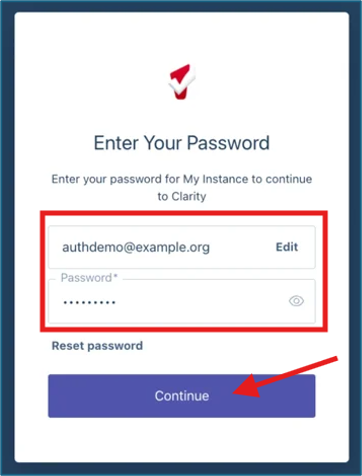
- The first SSO login with Auth0 will require you to select your authentication method
- See authentication methods above for more information
- The authentication methods are:
- Notification via Auth0 Guardian app,
- Google Authenticator or similar,
- Phone
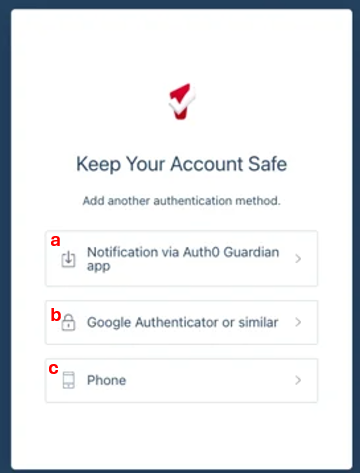
- Option a) Auth0 Guardian App Authentication
- If you are using this method, you will need to install the Auth0 Guardian app via the app store from your mobile device
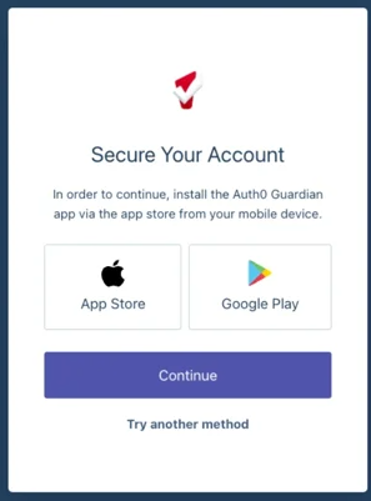
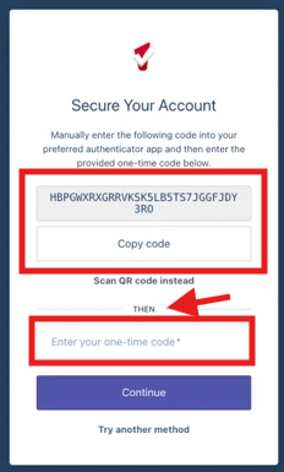
- Option b) Google Authenticator or similar
- If you are using this method, you will need to install your preferred authenticator app on either your mobile device or your desktop
- Then you will need to manually enter the code provided into your authenticator app which will provide you will a one-time code that will need to be entered in order to continue the authentication process.
- Option c) Phone
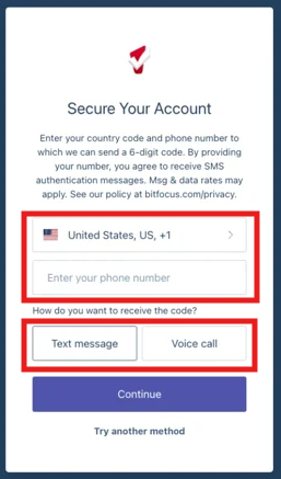
- If you are using this method, you will need to enter your country code and phone number that will receive the 6-digit code
- The code can be sent via SMS (text message) or a voice call
- Once authentication is complete, you will be automatically sent back to Clarity
Notes on clicking ‘Remember this device’:
- You may click ‘Remember this device for 30 days’ if you are the only person who has access to your work computer.
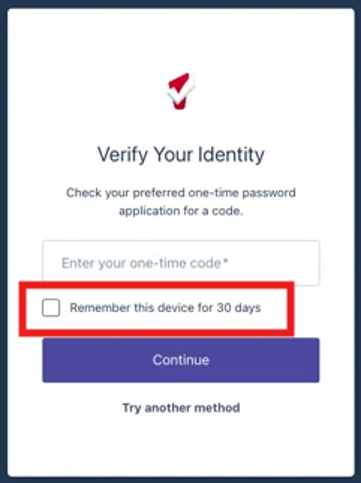
- If you select this option, the MFA will only be presented after a 30-day grace period.
- If you do not select this option, you will be required to go through the MFA at every login.
- ‘Remember this device’ replaces the ‘trusted device’ selection for the legacy 2FA.
Watch the video below for step-by-step instructions on how to set up a desktop authenticator, like Proton.
Reoccurring Authentication:
Re-authentication will be required either every login or every 30 days if you select ‘Remember this device for 30 days’.
- Re-authorization will include needing access to your authentication method selected and following the steps necessary.
- Re-authorization looks different depending on the method previously selected and enrolled in.
If you need assistance, please contact your HMIS help desk, and remember that ICA cannot access any of the authentication methods. We can only reconfigure your MFA, forcing you to re-enroll the next time you log in.
*Email Addresses
All HMIS end user accounts are created with their employment agency email address.
- This is required for account recovery and able to be used as a backup to the MFA method selected.
- Your email address is automatically enrolled as the backup email method.
- There is nothing you need to do to set this up during the initial transition.
If your email address changes, the system will automatically unenroll that email, and the new email will need to be manually enrolled by the ICA System Admins.
Important Note: If your agency has interchangeable email addresses, you must use the same email address that is in the end user access profile. ICA will always use the email address that was reported to us by your supervisor when your training was requested, unless otherwise requested.
If you have questions or concerns, please reach out to your NH HMIS System Administrators; nhhmis@icalliances.org
Copyright 2026 Institute for Community Alliances. All rights reserved.