.png)
5. Creating a Program Enrollment
All materials developed by ICA are based on the Bitfocus Clarity HMIS platform and reflect the most current information available to us. Materials are updated as new information, guidance, and functionality are released by the vendor.
Because the system continues to evolve, there may be updates or changes to the interface or functionality that are not yet reflected in these materials. ICA will continue to review and update these resources as additional information becomes available from Bitfocus.
Creating a program enrollment in HMIS records a participant's entry into a project. Accurate enrollments ensure client information, program activities, and outcomes are properly tracked supporting data quality, reporting requirements, and program performance measurement.
Before creating a program enrollment you will first need to search for the clients Clarity profile. Depending on their history you may need to create a new client and/or manage the household.
HMIS Workflow
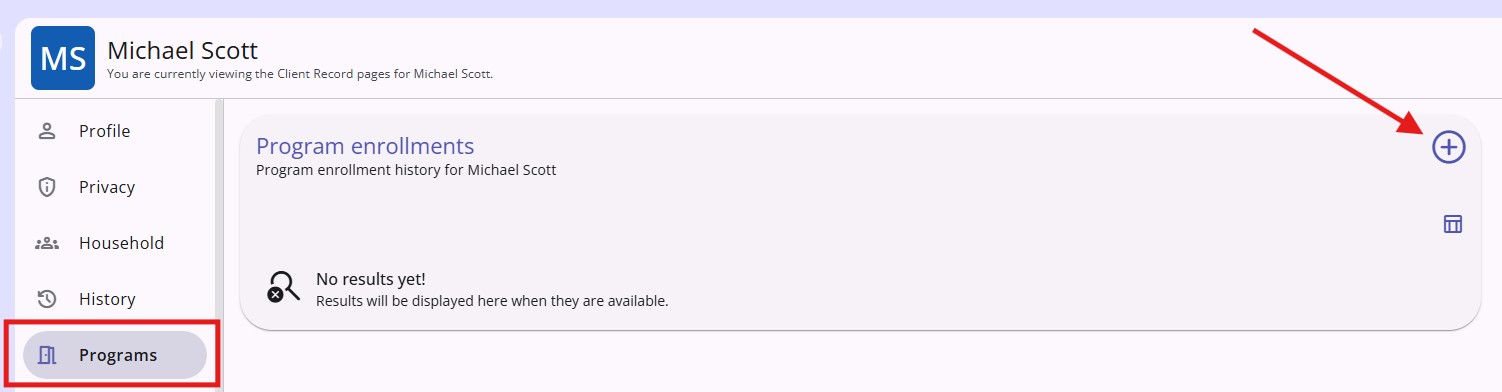
- Click the Programs tab on the client's navigation menu in the client record. The tab contains the program enrollment history and an Add icon.
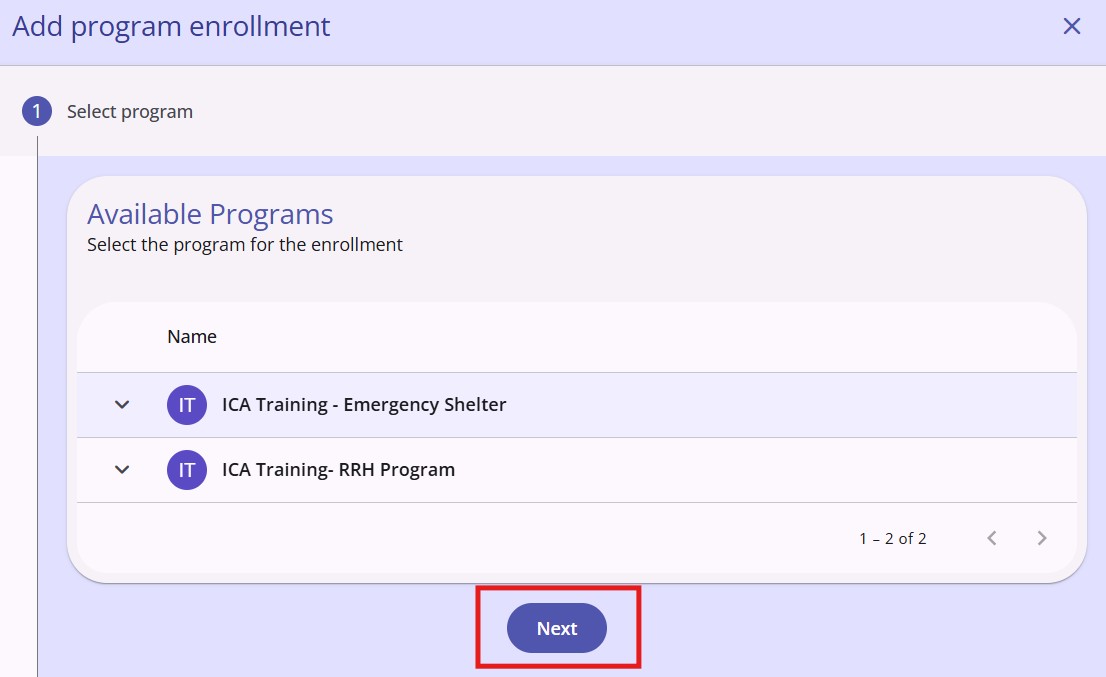
- Select the correct program and click Next.
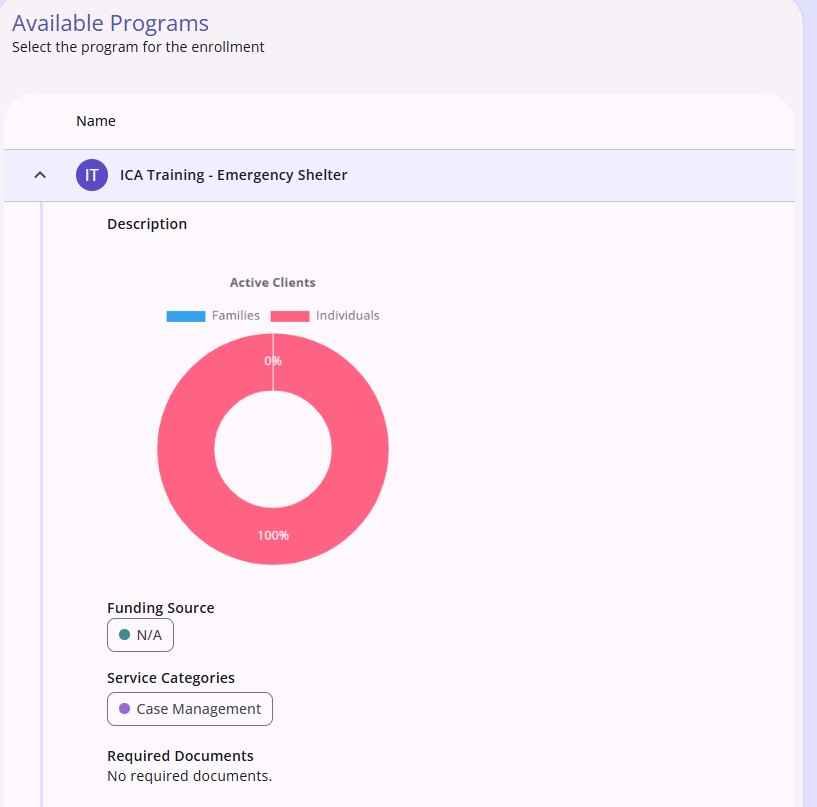
- Additional information and options will display when you click the drop-down arrow.
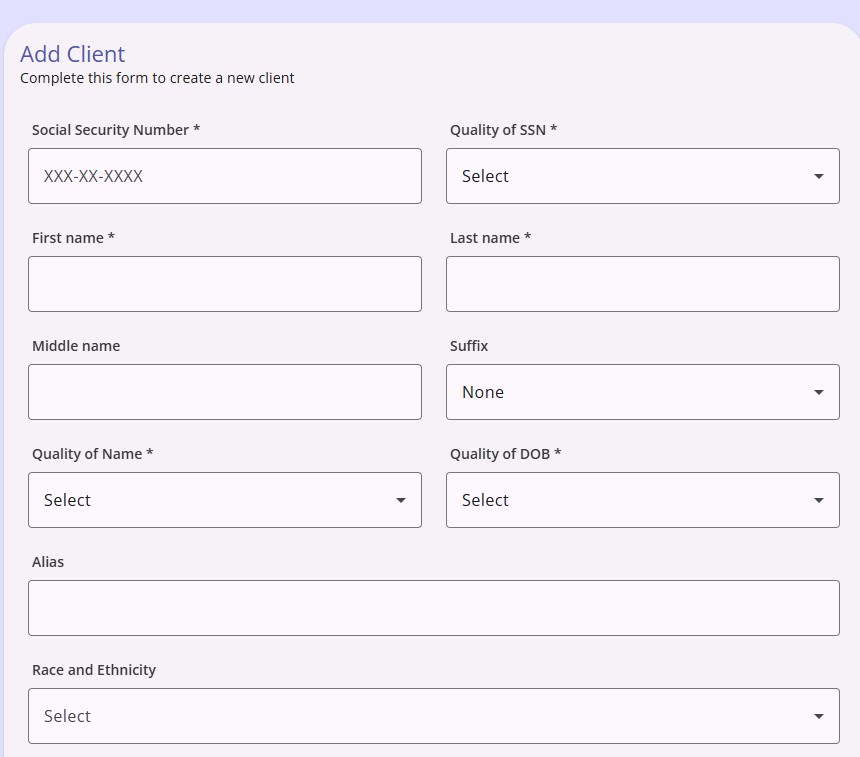
- Complete the program enrollment
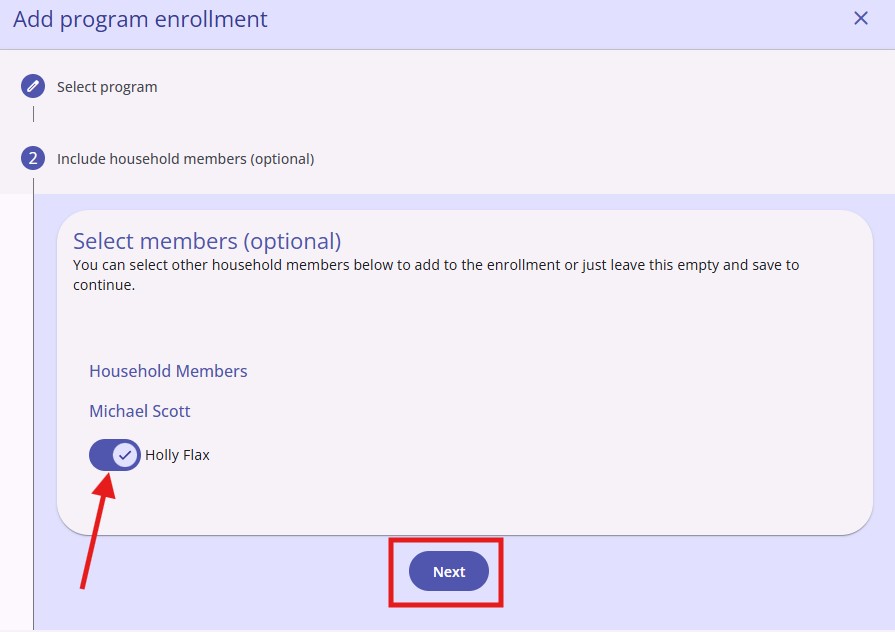
- If you have created a family/household for the client, you will be prompted to select family/household members to include in the enrollment. Click the name(s) next to the family member(s) who should be enrolled in the program and then click Next.
Copyright © Institute for Community Alliances, 2026. All Rights Reserved.