.png)
4. Managing Households
Managing households in HMIS ensures that individuals who are applying for or receiving services together are accurately linked as a household. Proper household management identifies the head of household, establishes relationships between household members, and ensures all members are enrolled in the appropriate programs. Maintaining accurate household records supports coordinated service delivery, improves data quality, and ensures compliance with HUD reporting requirements.
HMIS Workflow
By default, a newly created client record will not be associated with a Household. You may review Households, add Household Members and manage Household Members from the client record.
- When you are on any section within a client record, you will see the Household tab on the client navigation menu and an additional Household widget.

- Clicking Household on the client navigation menu takes you to the Current Household Members page. This includes:
- Current household members.
- Former household members.
- Previous household history.
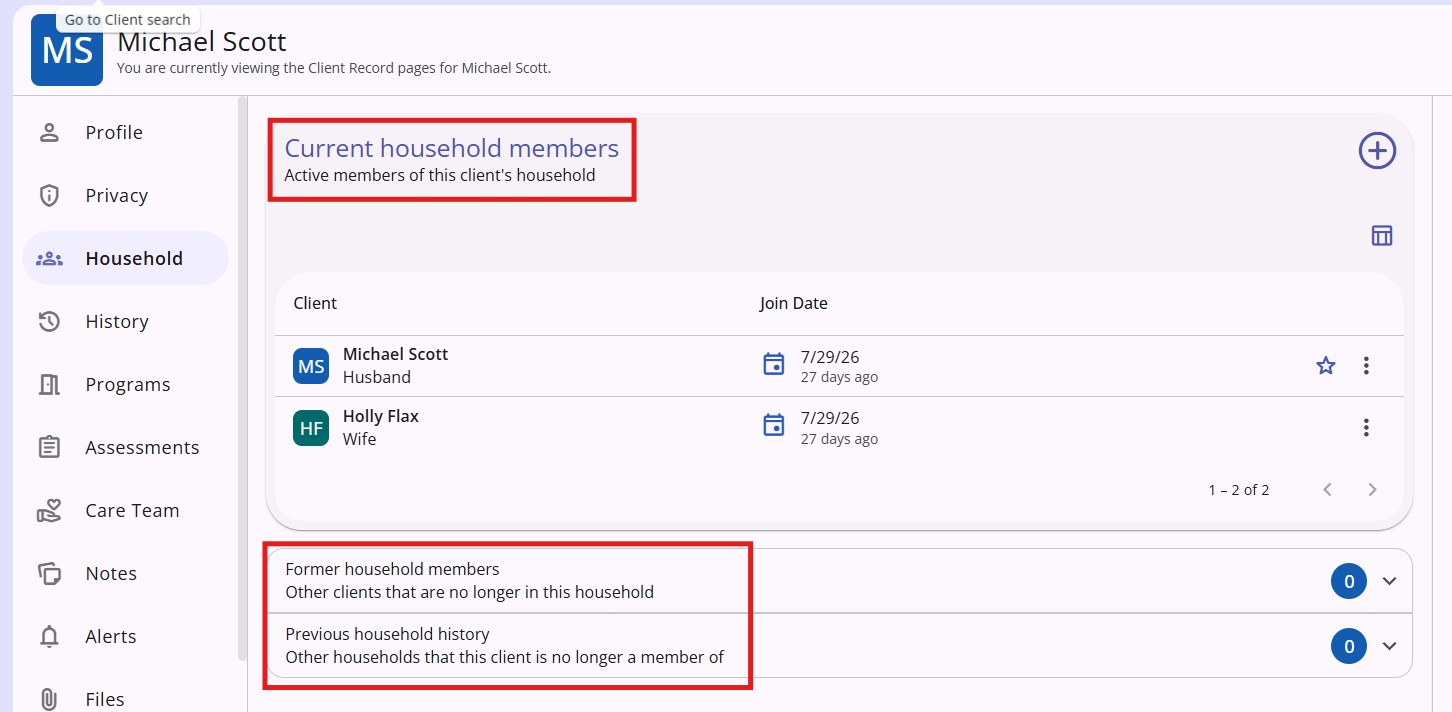
- Click the Plus Sign (+)

Quick Add from Recently Accessed Clients
Because records for clients in the same household are generally added to the system sequentially, the client(s) who need to be associated with a Household in the system will most likely be listed in your recently accessed clients. If you don't see the clients you're looking for in this list, you can use the Search function (described below) at the top of the Add household member page. Recently accessed clients that are currently in a household will include the existing group’s Head of Household and the number of members in that Household.
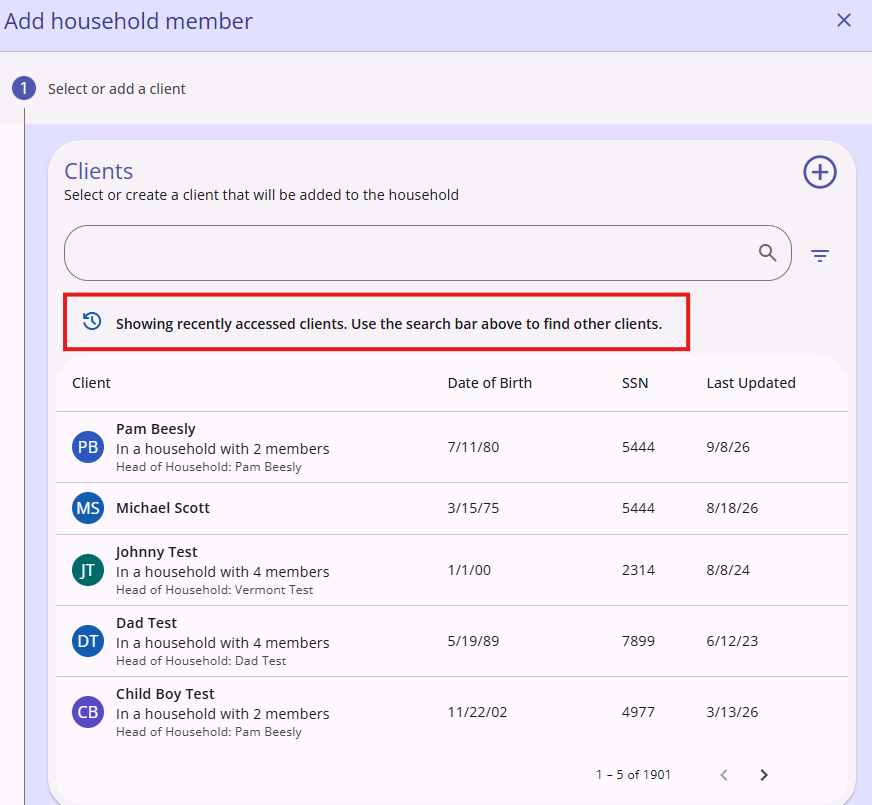
Recently accessed clients that are currently in a household will include the existing group’s Head of Household and the number of members in that Household.
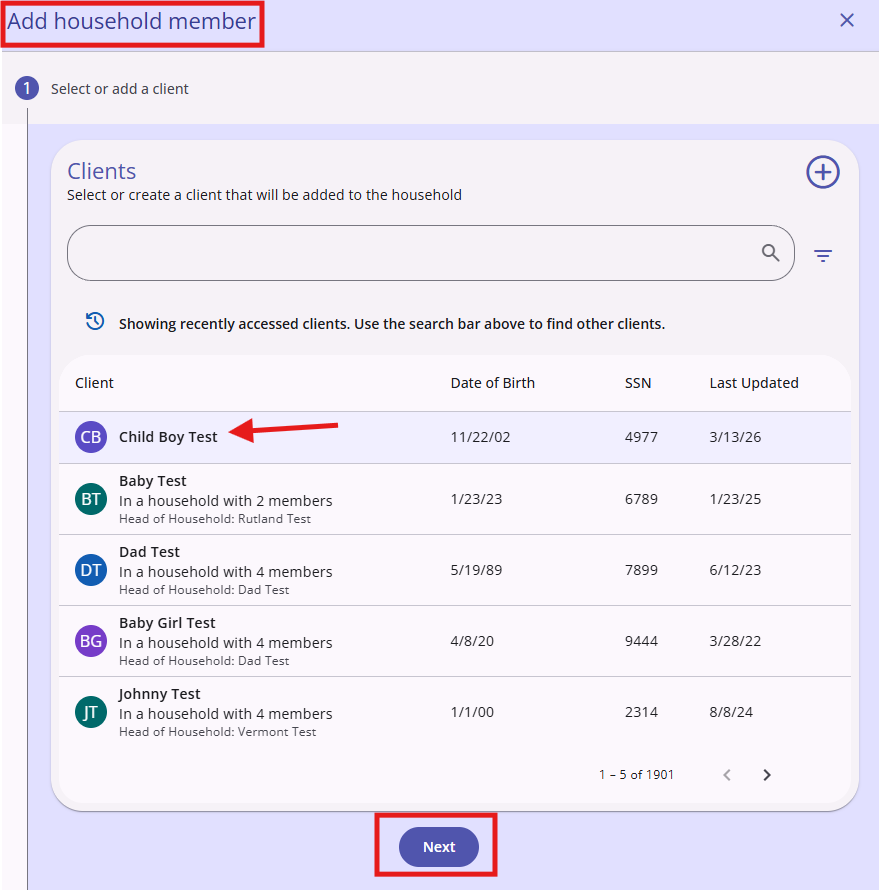
Adding a client with no other household members
- Click on the name of a client without additional household details and then click Next.
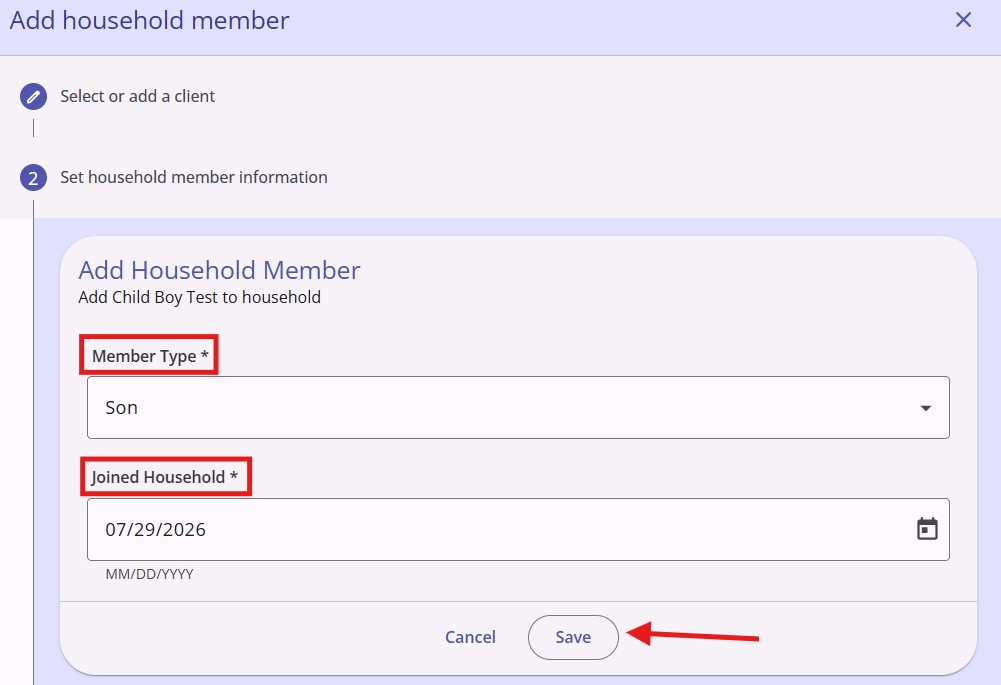
- Select the appropriate responses for Relation to Head of Household and Joined Household and then click Save. On the next screen, complete the workflow and the client will be added to the Household.
Adding a client with an existing household
Scenario 1:
The active client (in this case, Michael Scott) is not already a member of a household and we wish to add Jim Halpert who is already a member of a household.
- Since Jim Halpert is already in a household, the active client (in this case, Michael Scott) will be added to Jim’s household. You will select the appropriate answers for Relation to Head of Household and Joined Household and then click Save & Next. On the next screen, complete the workflow and the client will be added to the Household.
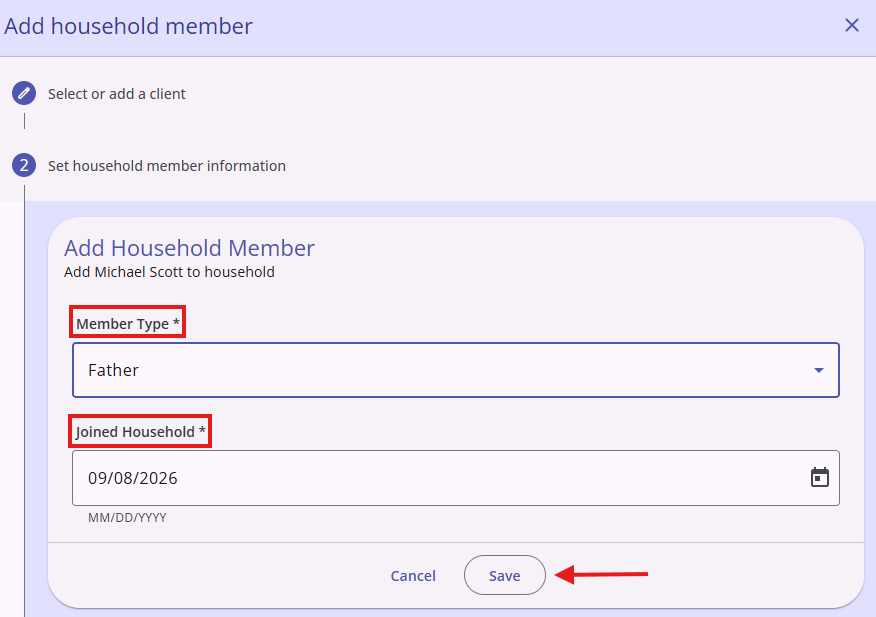
- Since Jim Halpert is already in a household, the active client (in this case, Michael Scott) will be added to Jim’s household. You will select the appropriate answers for Relation to Head of Household and Joined Household and then click Save & Next. On the next screen, complete the workflow and the client will be added to the Household.
Scenario 2:
The active client (in this case, Jim Halpert) is already a member of a household. We wish to add Pam Beesly to to Jim’s household.
- Because a client record cannot be a member of two distinct Households at the same time (meaning that we cannot keep Jim in his existing household and join him with Pam’s household), clicking on Pam’s name to highlight and then clicking Next displays a warning and provides two options to consider. The warning is Active client is already in a Household. This action will end involvement in the current household and add as a member of the selected household.
- The options to choose from are:
- Active client (in this case, Jim Halpert) will leave and join client’s (in this case, Pam Beesly's) Household
- Transfer client (in this case, Pam Beesly) from their existing Household to client's (in this case, Jim Halpert’s) Household.
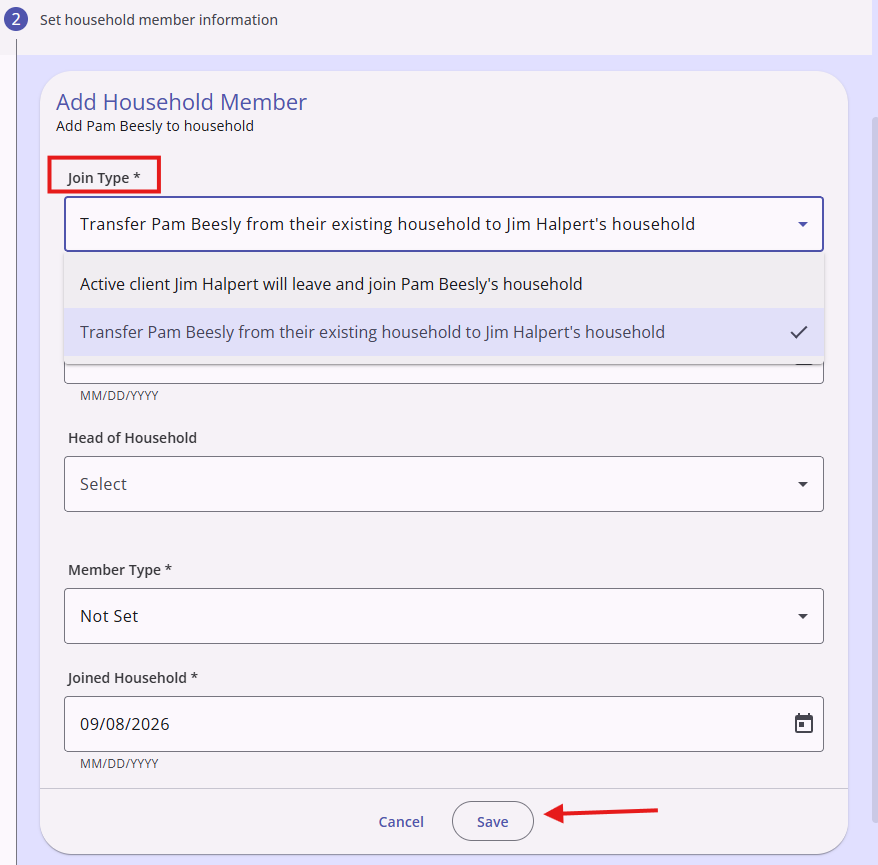
- Select the appropriate option, then:
- Enter the Exited Household date and Head of Household for the household that a client is leaving.
- Enter the Relation to Head of Household* and Joined Household for the household that a client is joining.
- Click Save & Next.
- On the next screen, complete the workflow and the client will be added to the Household.
Add a New Client to a Household
If you use the Client Search function and do not find the client in the system, you may add the client to the system and the household at the same time.
- Use the Add icon at the right side of the Add household member page to add a client to the system and the household. Ensure you do a thorough search before adding a new client to the system.
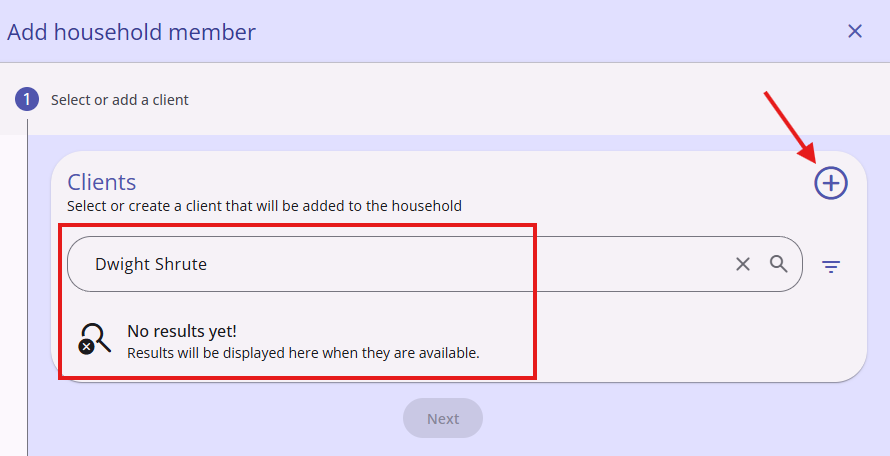
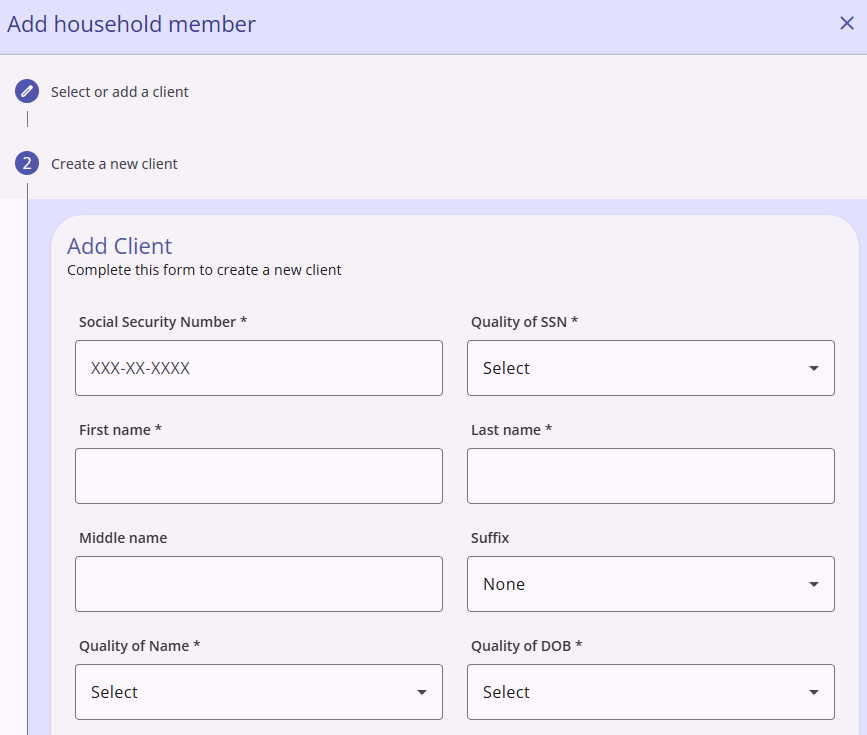
- When you click on the Add icon, you will be able to add a new client record and also complete the workflow to add the client to the household.
Removing a Household Member
- Click the three dots/action menu icon to the right of any group member in the Current household members section.
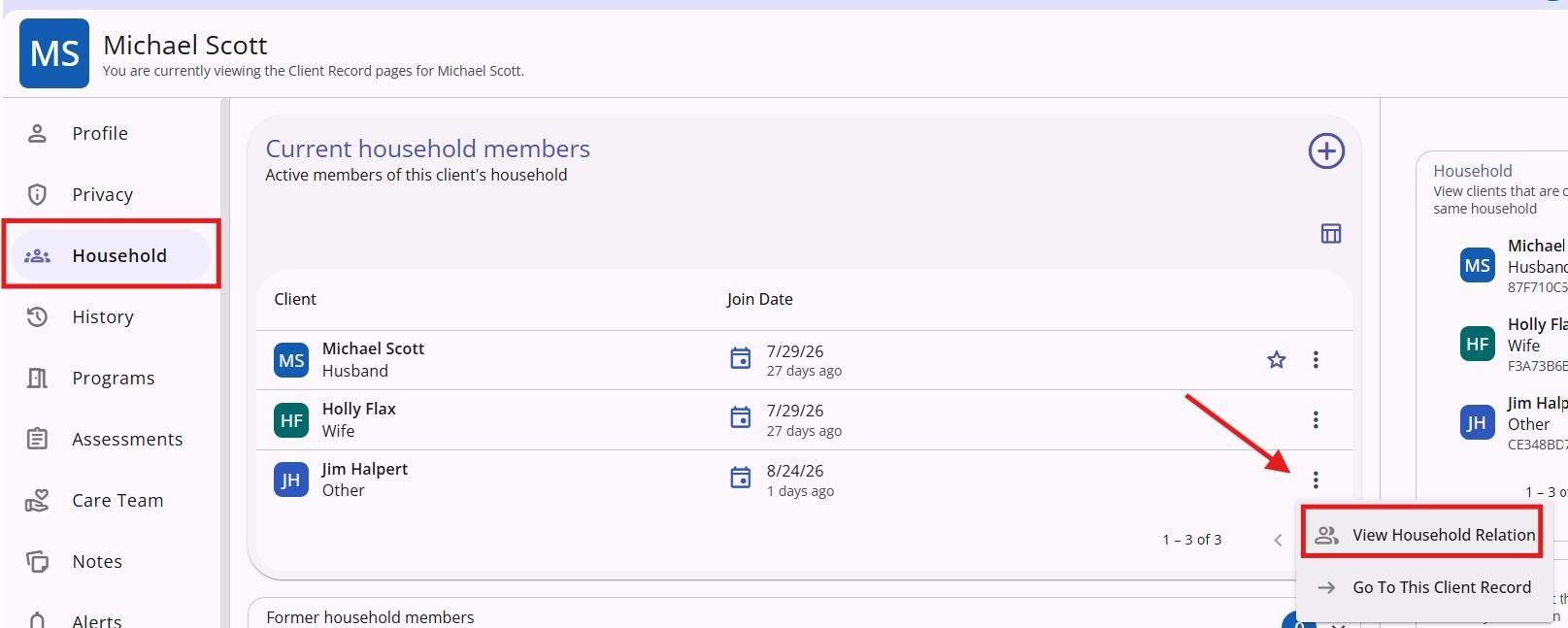
- The Edit Household Member screen will appear. Click the Edit Icon
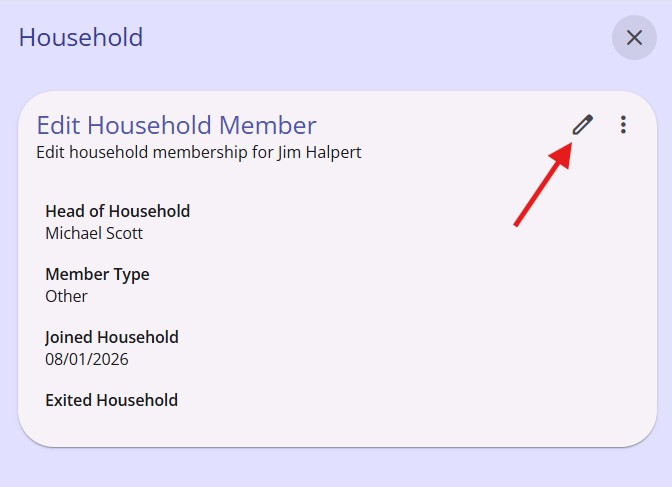
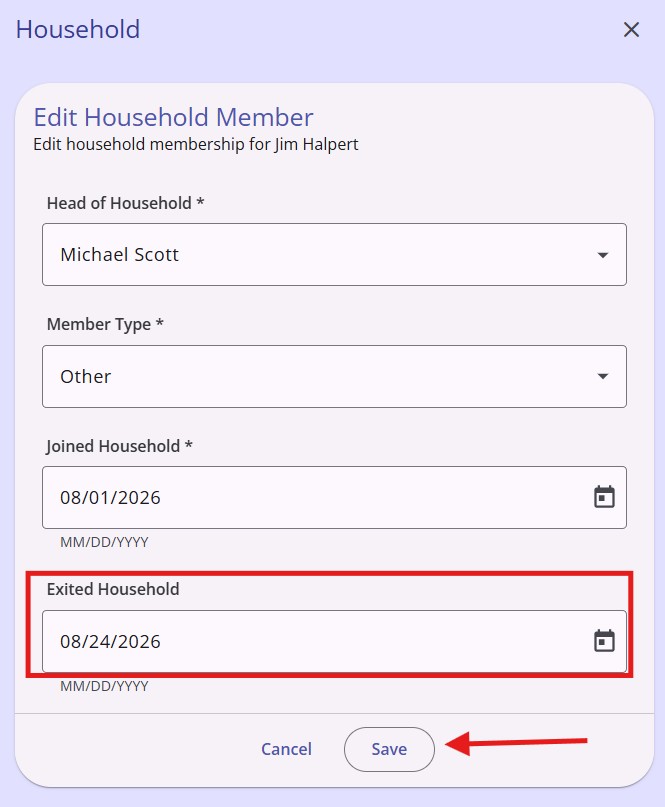
- Enter the date when the client’s participation in the group will end for the Exited Household field. Click Save. The client will be considered a member until that date. The client record will automatically be removed from the group and listed in the Former households section once the date has passed.
Copyright 2026 Institute for Community Alliances. All rights reserved.